
If you’ve ever opened a macro you wrote a year ago and stared blankly at a variable named x2, you already understand the problem this post solves. VBA doesn’t force you to name anything meaningfully — it’s perfectly happy with x, temp, and a — which means the discipline has to come from you. The good news is that a small set of habits turns cryptic code into something that explains itself.
Why Variable Names Are Worth the Extra Few Seconds
Every macro you write today is one you (or a coworker) will eventually need to fix, extend, or debug — often under time pressure, often without much memory of how it originally worked. Vague names turn that moment into detective work. Descriptive names turn it into a quick read.
This matters even more in a business setting, where a macro that automates monthly reporting or client-facing documents might outlive the person who built it. A well-named macro can be handed off; a poorly named one becomes a black box nobody wants to touch.
Start With Option Explicit
Before naming anything, add one line to the top of every module:
Option ExplicitThis forces VBA to require a formal declaration for every variable you use. Without it, a simple typo — say, referencing rngRecord somewhere in your code when you actually declared rngRecords — silently creates a brand-new, empty variable instead of throwing an error. Option Explicit won’t fix your naming on its own, but it guarantees that every variable in your code was named on purpose.
A Practical Naming Pattern
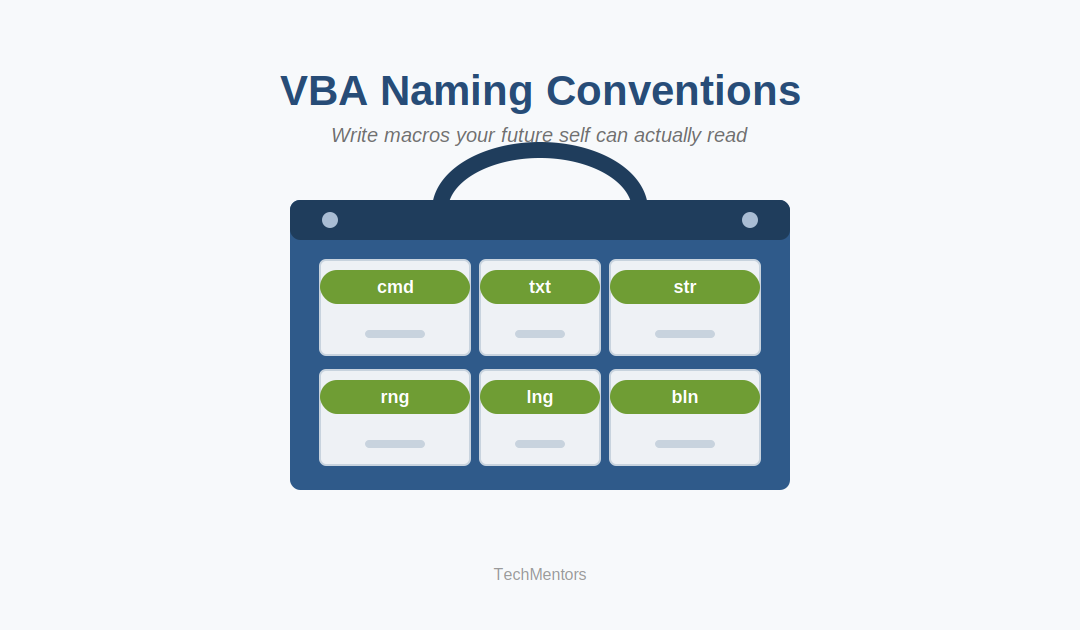
A widely used approach pairs a short type prefix with a descriptive name in camelCase:
| Data Type | Prefix | Example |
|---|---|---|
| String | str | strCustomerName |
| Integer | int | intRowCount |
| Long | lng | lngRecordID |
| Double | dbl | dblTotalAmount |
| Boolean | bln | blnIsActive |
| Range (Excel) | rng | rngSalesData |
| Worksheet | wks | wksSummary |
| Recordset (Access) | rst | rstCustomers |
You don’t have to adopt every prefix in this table on day one. Picking two or three of the ones you use most often — Range and String are a common starting point for Excel macros — is enough to start seeing the benefit.
Naming Procedures, Too
The same logic applies to Sub and Function names. A verb-first pattern makes it immediately clear what a procedure does, not just what it relates to:
ImportCustomerDatarather thanCustomerStuffCalculateMonthlyTotalrather thanCalc1ValidateInvoiceNumberrather thanCheckThing
When your Navigation pane or module list is full of procedures named this way, you can find the one you need without opening half a dozen of them first.
Don’t Forget the Objects on Your Forms
Here’s the naming gap that trips up even experienced developers: it’s not just variables and procedures that need good names — the controls on your Access forms and reports do too. Try reading someone else’s VBA behind a form where the button is named Command1, the text box is Text2, and the combo box is Combo14. Every line of code that references them becomes a guessing game, because the control’s name tells you nothing about what it does.
The fix is the same prefix-based thinking used elsewhere, applied to controls:
| Control Type | Prefix | Example |
|---|---|---|
| Command Button | cmd | cmdSaveRecord |
| Text Box | txt | txtCustomerName |
| Label | lbl | lblStatus |
| Combo Box | cbo | cboOrderStatus |
| List Box | lst | lstProducts |
| Check Box | chk | chkIsActive |
Rename controls in the Property Sheet (press F4 while in Design view, select the control, then update the Name property on the Other tab) — ideally before you start writing code that references them. Renaming a control after your VBA already refers to it means finding and updating every reference by hand, so it’s worth a few extra seconds up front.
Before and After
Here’s the difference in practice:
Before:
Sub DoStuff()
    Dim x As Range
    Dim y As Integer
    Dim z As String
    Set x = Sheet1.Range("A1:A100")
    y = x.Rows.Count
    z = "Complete"
End Sub
After:
Sub CalculateRowCount()
    Dim rngSalesData As Range
    Dim intRowCount As Integer
    Dim strStatus As String
    Set rngSalesData = Sheet1.Range("A1:A100")
    intRowCount = rngSalesData.Rows.Count
    strStatus = "Complete"
End Sub
Nothing about the second version is more complicated — it’s simply readable without needing the original author in the room to explain it.
The Same Rules That Apply Everywhere
Just as with database or spreadsheet naming, keep VBA names descriptive but short, avoid ALL CAPS, and keep each name unique within its scope so nothing gets confused with a similarly-purposed variable elsewhere in the project.
The Payoff
Consistent naming won’t make your macros run any faster, but it will make them dramatically faster to maintain — which, for most small businesses, is where the real time is spent. A few extra seconds naming a variable well can save an entire afternoon of guesswork down the road.
Want help cleaning up or documenting an existing set of macros? Reach out to us and let us know what you’re working with — we’d be glad to help.
